How To Connect Steam Deck To Monitor Step By Step Guide
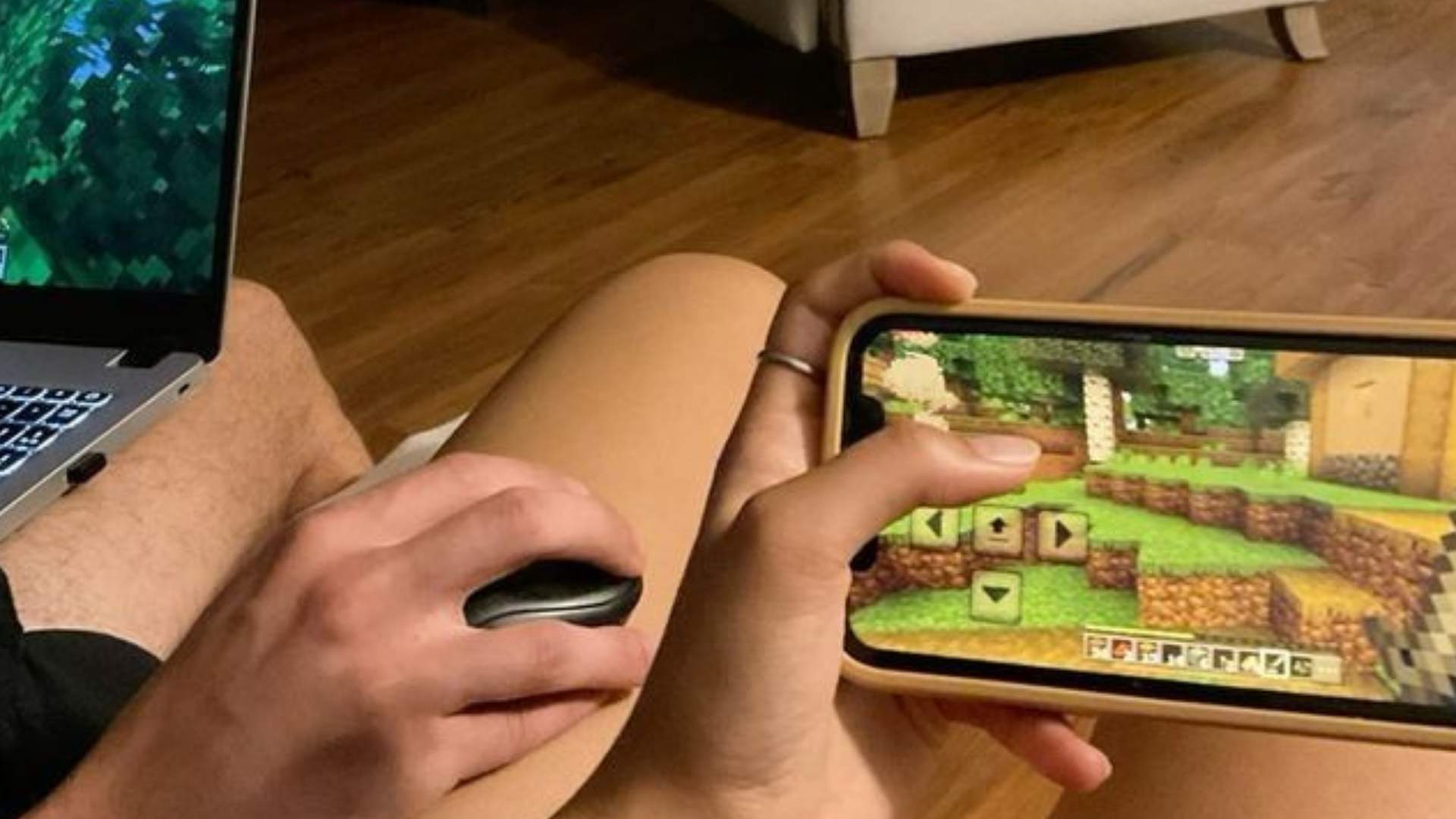
Connecting Valve's Steam Deck to an external monitor transforms the portable handheld into a powerful desktop gaming station. Whether you are looking to enjoy immersive single-player adventures on a larger display or productivity tasks in Desktop Mode, setting up an external monitor is straightforward. Understanding the proper hardware requirements and display configurations ensures a smooth, high-performance experience without frustrating technical hiccups.
Choosing the Right Cable or Docking Station
The Steam Deck features a single USB-C port at the top that handles power delivery, video output, and data transfer. To connect to a monitor, you can use a direct USB-C to HDMI or DisplayPort cable if your monitor supports it. Alternatively, using a dedicated USB-C hub or official docking station allows you to keep the handheld charged while connecting external peripherals simultaneously.
Connecting the Hardware Step by Step
Begin by plugging your USB-C adapter, hub, or dock directly into the Steam Deck's USB port. Next, attach your HDMI or DisplayPort cable from the hub or adapter to the input port on your monitor. Finally, turn on your monitor and power on the Steam Deck, which should automatically detect the external display and mirror or extend the screen.
Configuring Display Settings in Gaming Mode
When connected in Gaming Mode, the Steam Deck automatically adjusts its resolution to match the connected display. You can manually adjust the screen resolution, frame rate limits, and display scaling by navigating to the Display section in the system settings menu. Fine-tuning these parameters helps maintain optimal game performance, especially when outputting to 1440p or 4K monitors.
Switching to Desktop Mode for Advanced Control
For greater control over multi-monitor layouts, switch the Steam Deck to Desktop Mode via the power menu. Inside Desktop Mode, open System Settings and select Display Configuration to arrange screen positions, set primary displays, and modify refresh rates. This setup provides a seamless desktop environment suitable for web browsing, streaming, and light productivity work.
Troubleshooting Common Connection Issues
If your monitor displays a black screen or shows a No Signal message, first verify that all physical cable connections are secure. Unplugging and reinserting the USB-C cable or power cycling the dock often resolves temporary handshake errors between devices. Additionally, checking for system updates in settings ensures that graphics drivers and firmware remain fully compatible with external displays.