Bluetooth Connect PS4 Controller To PC With A Simple Setup Guide
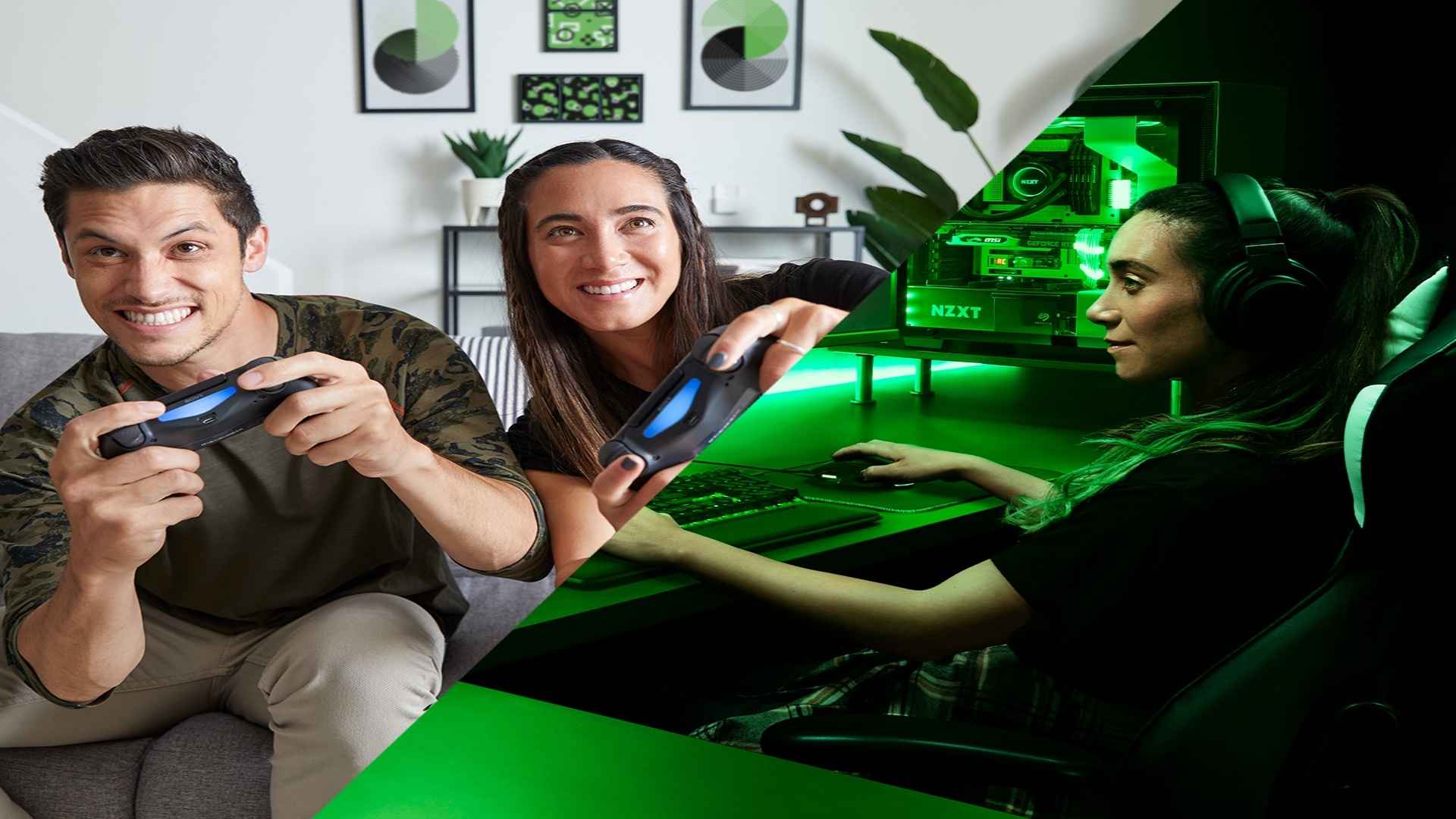
Connecting a PlayStation 4 DualShock gamepad to a Windows computer provides an enhanced gaming experience for PC enthusiasts who prefer controller layouts over traditional keyboard inputs. Modern operating systems make establishing a wireless link straightforward without requiring complex hardware setups. By using standard system settings, players can seamlessly integrate their console accessories into their desktop gaming environment.
Preparing Your PC and DualShock Controller
Before initiating the pairing process, ensure your computer features built-in Bluetooth capabilities or has an external receiver plugged in. It is equally important to verify that your DualShock pad has sufficient battery charge to maintain a stable wireless link during configuration. Fully charging the device prevents unexpected disconnections while setting up your control profile.
To place the controller into pairing mode, press and hold the Share button alongside the PS logo button simultaneously. Continue holding both controls until the light bar behind the touchpad begins flashing rapidly in a double-pulse pattern. This distinct light signal confirms that the pad is actively broadcasting its signal and ready for computer detection.
Establishing the Wireless Connection
Open the Settings menu on your computer and navigate directly to the Bluetooth and devices category. Enable the primary Bluetooth toggle switch to ensure the system scans for nearby hardware. Click the option to add a new device, then select Bluetooth from the presented options list.
Your operating system will scan available signals and display the gamepad as Wireless Controller within a few seconds. Click on the detected entry to initiate the pairing handshake between the two systems. Once successfully linked, the light bar on the gamepad will glow steady, confirming a solid connection.
Configuring Input Settings for Games
While Windows recognizes the wireless hardware, certain native PC game titles require specific input translation software for full feature support. Popular gaming launchers feature built-in controller configuration tools that automatically remap inputs for maximum compatibility. Accessing controller settings inside your preferred launcher ensures proper button mapping and vibration feedback across your game library.
For games launched outside dedicated store platforms, third-party mapping software can bridge any remaining compatibility gaps seamlessly. These utilities map DualShock inputs directly to standard system controls, allowing smooth navigation in older titles. Configuring these preferences once guarantees consistent performance across all desktop software.
Troubleshooting Common Connection Issues
If your computer fails to discover the controller, turning off Bluetooth and re-enabling it often resolves temporary connection hiccups. Signal interference from nearby wireless devices or weak battery power can also disrupt the initial pairing attempt. Simply restarting the pairing mode on the DualShock pad usually restores proper communication.
In cases where latency occurs during gameplay, updating your PC's Bluetooth drivers helps ensure optimal response times. Removing the Wireless Controller from saved devices and re-pairing it freshens the connection protocol completely. Following these steps maintains a reliable wireless link for continuous gaming sessions.